Intel Arc Pro Battlemage in OpenStack: GPU Passthrough with Genestack
Battling passthrough, for accelerated fun


A couple of years ago, I wrote about using Intel integrated graphics as virtual GPUs in OpenStack. That experiment started out of curiosity, mostly because there wasn't much documentation covering Intel SR-IOV GPUs in OpenStack, and I wanted to see how well the technology worked.
The result was a functional vGPU deployment using a couple of Lenovo M70Q systems, Intel integrated graphics, and OpenStack. Nothing particularly exotic, but it demonstrated how easily accelerators could be exposed through an OpenStack cloud without spending the GDP of a small nation-state.
Fast-forward to today, and Intel has released its Arc Pro B-series GPUs, based on the Battlemage architecture. These cards are particularly interesting because they offer a substantial amount of memory, dedicated matrix acceleration, and an alternative to the usual GPU options for AI and inference workloads.
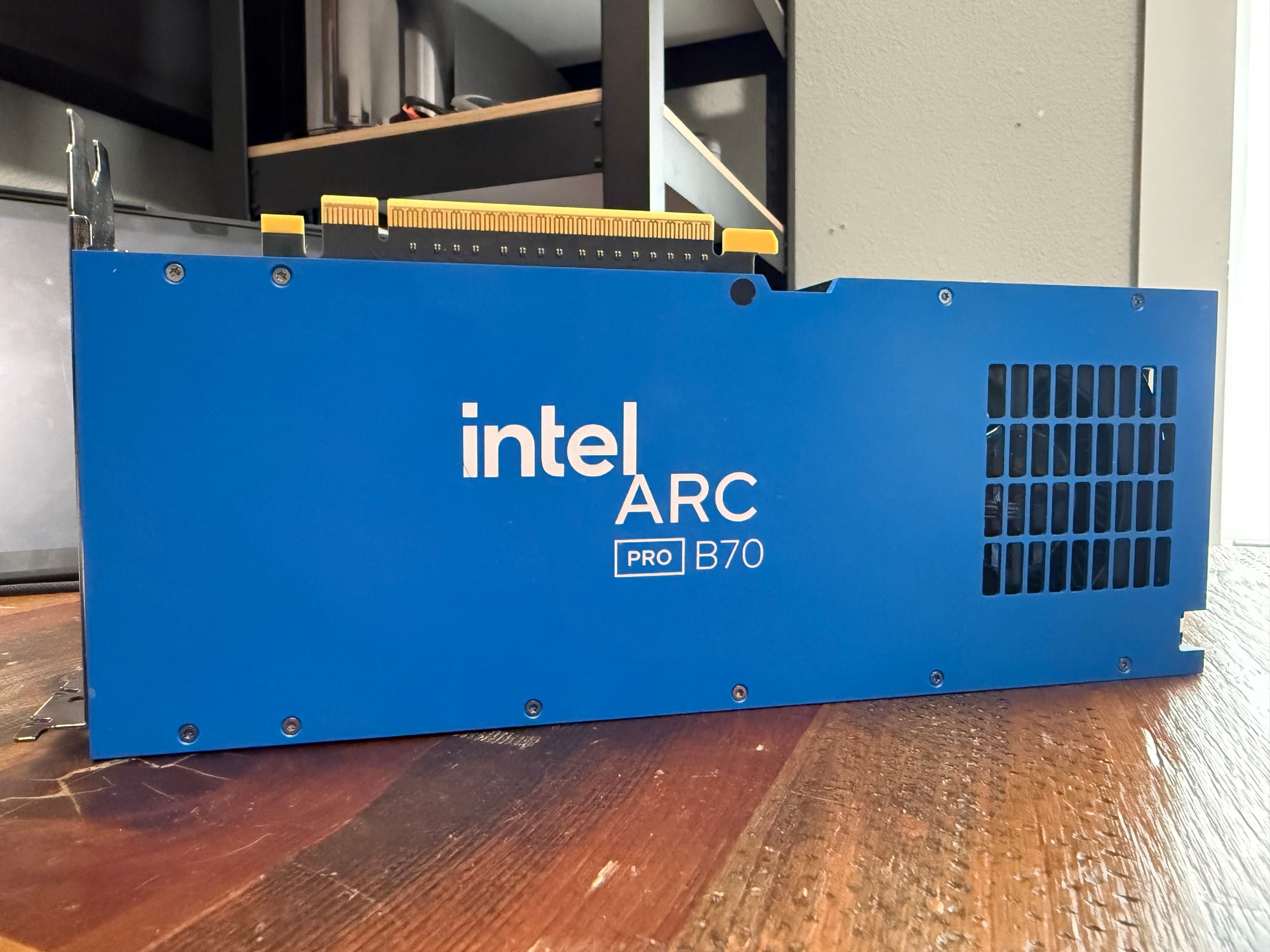
The Intel Arc Pro B70 caught my attention with its 32GB of GDDR6 memory, 608GB/s of memory bandwidth, and 256 XMX engines.
Naturally, I wanted to put one in my OpenStack cloud. For this experiment, I'm using Genestack, Rackspace's open-source OpenStack deployment project, and an Intel Arc Pro B70 installed in one of my existing compute nodes.
The objective is to expose the GPU through Nova using PCI passthrough, deploy an instance with the accelerator attached, and configure the guest operating system to take advantage of Intel's Xe driver and compute runtime. As with most hardware experiments, getting everything working was straightforward once I figured out all the things that weren't.
Post Overview
This post is broken into three parts and follows the same general structure as my earlier Intel vGPU article.
- Host Setup: Configure the hypervisor, VFIO, IOMMU, and PCIe devices.
- OpenStack Setup: Configure Nova to discover, schedule, and assign the GPU.
- Client Setup: Install Intel's GPU software stack, configure the guest, and validate functionality.
Along the way, we'll look at a few issues I encountered, including SR-IOV device classification, AMD IOMMU timeouts, Intel GPU runtime power management, and some unexpected behavior when assigning less system memory than the GPU has VRAM.
None of these issues required modifying OpenStack itself, which is always a nice outcome.
Host Setup
Hardware Overview
For this deployment, I'm using an AMD-based compute host running Debian 12 with the Linux 6.12 kernel.
The motherboard is a Gigabyte X470 AORUS ULTRA GAMING, which isn't exactly cutting-edge hardware anymore. However, this is my lab, and part of the fun is making use of the hardware already available. The Intel Arc Pro B70 has the following specifications:
| Component | Specification |
|---|---|
| Architecture | Intel Xe2 / Battlemage |
| Dedicated Memory | 32GB GDDR6 |
| Memory Bandwidth | 608GB/s |
| XMX Engines | 256 |
| Peak INT8 Performance | 367 TOPS |
| PCIe Interface | Gen5 x16 |
| Total Board Power | 230W |
| GPU PCI ID | 8086:e223 |
| Audio PCI ID | 8086:e2f7 |
The 32GB of dedicated memory is particularly attractive for inference workloads. Memory capacity is often one of the first constraints encountered when experimenting with larger models, and having that much VRAM on a single accelerator opens up some interesting possibilities.
Of course, putting a PCIe Gen5 GPU into an older motherboard introduces some limitations. We'll get to those.
Identifying the GPU
First, we need to gather the PCI device information.
On the compute host, run:
lspci -nn | grep -Ei 'VGA|Display|Audio'My system reports the Intel GPU as:
0f:00.0 VGA compatible controller [0300]:
    Intel Corporation Device [8086:e223]

10:00.0 Audio device [0403]:
    Intel Corporation Device [8086:e2f7]
Notice the GPU and its audio device are exposed as separate PCI functions. For this deployment, I'm assigning the entire physical GPU to an instance, rather than creating individual virtual functions This is different from my earlier Intel iGPU article, where we enabled SR-IOV and exposed multiple virtual GPUs from a single physical device. The B70 supports SR-IOV, but for now I'm interested in full physical-device passthrough.
Host Kernel Parameters
The first step is configuring the compute host to reserve the Intel GPU for VFIO. Edit /etc/default/grub and configure the kernel command line. For my AMD-based host, the relevant settings are:
GRUB_CMDLINE_LINUX_DEFAULT="amd_iommu=on iommu=pt vfio-pci.ids=8086:e223,8086:e2f7 pci=noats"A quick overview of the parameters:
| Parameter | Purpose |
|---|---|
amd_iommu=on | Requests AMD IOMMU support |
iommu=pt | Uses passthrough mappings for host-managed devices |
vfio-pci.ids | Reserves the Intel GPU and audio functions for VFIO |
pci=noats | Disables PCIe Address Translation Services |
The pci=noats parameter is included because of an issue I encountered with this particular hardware combination. I'll explain that shortly. My actual compute host has a more extensive VFIO configuration because it also supports several NVIDIA and AMD GPUs. The example above includes only the settings relevant to this deployment.
For production environments, especially multi-tenant clouds, I would avoid disabling CPU security mitigations or enabling unsafe VFIO interrupts unless there is a specific requirement that has been validated.
Update GRUB and reboot the host.
update-grub
reboot
Once the compute node is back online, validate the running kernel parameters.
cat /proc/cmdlineThen verify that VFIO has claimed the GPU.
lspci -nnk -s 0f:00.0Expected output:
0f:00.0 VGA compatible controller [0300]:
    Intel Corporation Device [8086:e223]
    Kernel driver in use: vfio-pci
That's what we want. The host should not be using Intel's xe driver for this device. We're reserving the GPU for OpenStack instances, so the guest operating system will be responsible for loading the appropriate Intel graphics driver.
SR-IOV Support and Physical Functions
Here's where things get interesting. Although we're not creating virtual functions, the Intel Arc Pro B70 is an SR-IOV-capable device. We can confirm this by checking the number of supported virtual functions.
cat /sys/bus/pci/devices/0000:0f:00.0/sriov_totalvfsOutput:
4Now check how many virtual functions are actually enabled.
cat /sys/bus/pci/devices/0000:0f:00.0/sriov_numvfsOutput:
0So the card supports four virtual functions, but none are enabled. This distinction matters because Nova categorizes SR-IOV-capable physical devices differently from conventional PCI devices. In Nova, PCI devices are generally classified as one of three types:
| Type | Description |
|---|---|
type-PCI | Conventional PCI device |
type-PF | SR-IOV-capable Physical Function |
type-VF | SR-IOV Virtual Function |
Even though we're assigning the entire GPU and not using any virtual functions, Nova identifies the B70 as type-PF. I learned this after spending some time wondering why Nova refused to schedule an instance onto a host that very clearly had the GPU installed. We'll cover that in the OpenStack configuration.
AMD IOMMU and PCIe ATS
After getting the GPU assigned to an instance, I noticed something concerning in the host's kernel logs. Whenever the VM was running, the AMD IOMMU began reporting timeout errors.
AMD-Vi: Completion-Wait loop timed out
AMD-Vi: Completion-Wait loop timed out
AMD-Vi: Event logged
[IOTLB_INV_TIMEOUT device=0000:0f:00.0]
The instance was running, and the GPU was attached, but these errors certainly didn't inspire confidence. The device address in the error corresponded to the B70, so I started investigating its PCIe capabilities.
lspci -vv -s 0f:00.0 | grep -A3 'Address Translation'The output showed:
Capabilities: [200 v1] Address Translation Service (ATS)
    ATSCap: Invalidate Queue Depth: 00
    ATSCtl: Enable+, Smallest Translation Unit: 00
The important part is:
ATSCtl: Enable+PCIe Address Translation Services allow devices to cache address translations, reducing the overhead associated with certain DMA operations. In this environment, however, the AMD IOMMU appeared to have trouble completing device translation-cache invalidations while the GPU was active inside the instance. To test that theory, I disabled ATS on the compute host by adding:
pci=noatsAfter updating GRUB and rebooting, I checked the GPU again.
lspci -vv -s 0f:00.0 | grep -A3 'Address Translation'This time:
Capabilities: [200 v1] Address Translation Service (ATS)
    ATSCap: Invalidate Queue Depth: 00
    ATSCtl: Enable-, Smallest Translation Unit: 00
Excellent. ATS was disabled, the GPU continued working through VFIO passthrough, and the previously observed AMD IOMMU timeout messages stopped appearing during my testing. I confirmed this with:
journalctl -k -b --no-pager | grep -Ei \
  'IOTLB_INV_TIMEOUT|Completion-Wait loop timed out'
No matching errors. This isn't necessarily a requirement for every Intel Battlemage installation. It may be specific to my motherboard, BIOS, AMD IOMMU implementation, or some combination of those components. However, if you're working with Intel GPU passthrough on an AMD host and encounter similar IOMMU invalidation timeouts, disabling ATS is worth considering as a diagnostic workaround. Keep in mind that pci=noats is a host-wide setting and may affect other PCIe devices.
PCIe Link Speed
While investigating the GPU, I also noticed something unusual.
Running:
lspci -vv -s 0f:00.0 | grep -E 'LnkCap:|LnkSta:'Reported:
LnkSta: Speed 2.5GT/s, Width x1That doesn't look particularly impressive for a PCIe Gen5 x16 GPU.
Fortunately, the B70 exposes an internal PCIe bridge hierarchy, and the endpoint's link status isn't representative of the physical connection to the motherboard.
The upstream bridge on my card is located at 0d:00.0.
lspci -vv -s 0d:00.0 | grep -E 'LnkCap:|LnkSta:'Output:
LnkCap: Speed 32GT/s, Width x16
LnkSta: Speed 8GT/s (downgraded), Width x8 (downgraded)
So the card supports PCIe Gen5 x16, but my system is currently negotiating Gen3 x8.
That's approximately 7.9GB/s of theoretical bandwidth in each direction.
Not wonderful, but given the age of the motherboard, I'm not particularly surprised. For inference workloads where the model remains resident in GPU memory, PCIe bandwidth may not be the primary bottleneck. Model loading and workloads that frequently transfer data between host and GPU memory will be more sensitive to the reduced bandwidth.
Maybe this is an excuse for another motherboard upgrade. For now, the card is working, so let's move on.
OpenStack Setup
With the compute host configured and the GPU bound to VFIO, we can configure OpenStack.
For this deployment, I'm using Genestack, which provides the OpenStack services and configuration management for my environment.
The required Nova configuration consists of two main pieces:
- A PCI device specification identifying the devices Nova can manage.
- A PCI alias describing the hardware that instances can request.
OpenStack Compute Nodes
First, configure Nova to recognize the physical GPU.
In the Genestack Nova overrides, add the PCI addresses to device_spec.
conf:
  nova:
    pci:
      device_spec: >-
        [{"address": "0000:0f:00.0"},
         {"address": "0000:10:00.0"}]
These are the GPU and audio device addresses from my compute host.
Remember that PCI addresses are specific to each machine, so validate your hardware before copying this configuration.
The device specification tells Nova which PCI devices it is allowed to track and make available for passthrough.
If you're running multiple GPUs, the configuration can include additional addresses or appropriately scoped vendor and product identifiers.
OpenStack Controller Nodes
The next step is configuring the PCI aliases.
My initial configuration looked like this:
conf:
  nova:
    pci:
      alias:
        type: multistring
        values:
          - '{"vendor_id": "8086", "product_id": "e223", "device_type": "type-PCI", "name": "b70", "numa_policy": "preferred"}'
At first glance, everything looked correct.
The vendor and product IDs matched the GPU, the device was bound to VFIO, and Nova could see the host.
So I created an instance.
And naturally, it failed to schedule.
The scheduler reported:
PciPassthroughFilter returned 0 hostsDigging into the Nova scheduler debug logs revealed:
Dropped 2 device(s) due to mismatched PCI attribute(s)

Not enough PCI devices left to satisfy request
This was a useful clue.
Nova wasn't complaining about CPU, memory, or disk resources. The PCI devices simply didn't match the request.
The problem was the device_type.
Because the B70 advertises SR-IOV support, Nova classifies the physical GPU as type-PF, not type-PCI.
The corrected configuration is:
conf:
  nova:
    pci:
      alias:
        type: multistring
        values:
          - '{"vendor_id": "8086", "product_id": "e223", "device_type": "type-PF", "name": "b70", "numa_policy": "preferred"}'
          - '{"vendor_id": "8086", "product_id": "e2f7", "device_type": "type-PCI", "name": "b70-audio", "numa_policy": "preferred"}'
The audio device is represented separately as type-PCI, consistent with its discovered classification.
The important correction is:
"device_type": "type-PF"That's it.
The physical GPU is an SR-IOV Physical Function, even though we're not enabling or assigning any virtual functions.
In my earlier Intel iGPU article, the aliases were configured as type-VF, because we were creating virtual GPUs.
Here we're using the entire physical GPU, so type-PF is correct.
Once the Nova configuration was updated and the relevant services restarted, the scheduler was able to match the GPU with the instance request.
No patches, custom scheduler filters, or source-code changes required.
OpenStack Flavor Setup
Now we can create a flavor that requests the B70.
For a general-purpose GPU instance, I'd start with something like:
openstack --os-cloud default flavor create --public \
  --ram 32768 \
  --disk 60 \
  --vcpus 4 \
  --property "pci_passthrough:alias=b70:1" \
  --property "hw:mem_page_size=any" \
  ao.b70.medium
The important property is:
pci_passthrough:alias=b70:1This tells Nova that an instance using this flavor requires one PCI device matching the b70 alias. The flavor has 32GiB of system memory, four vCPUs, and a 60GB root disk. I initially experimented with a smaller guest, using only 16GB of system memory. That turned into another learning opportunity, which I'll cover in the client setup section.
OpenStack Server Create
With the flavor configured, create an instance.
openstack --os-cloud default server create \
  --image "${IMAGE_NAME}" \
  --flavor ao.b70.medium \
  --network "${NETWORK_NAME}" \
  --key-name "${KEYPAIR_NAME}" \
  b70
For this deployment, I'm using Rocky Linux as the guest operating system.
Once the instance reaches ACTIVE, log in and verify that the GPU is available.
lspci -nn | grep -i e223The physical GPU should appear inside the guest, although its PCI address may differ from the host.
On my instance, the B70 appears at:
06:00.0 VGA compatible controller [0300]:
    Intel Corporation Device [8086:e223]
At this point, OpenStack has done its job.
The GPU has been discovered, scheduled, and attached to the virtual machine.
Now we need to make it useful.
Client Setup
Getting the GPU attached to an instance is only half the equation. The guest operating system still needs a compatible kernel driver, GPU firmware, and userspace compute runtime. For this deployment, I initially started with Rocky Linux 10.1. That didn't go quite as planned.
Rocky Linux 10.1 and the DRM Hang
My original instance was running:
Rocky Linux 10.1
Kernel: 6.12.0-124.8.1.el10_1.x86_64
The GPU was visible inside the VM, and I was able to interact with the PCI device. However, Intel's xpu-smi management utility would hang. The process was stuck in uninterruptible sleep:
PID  STAT  WCHAN
5623 D+    drm_fb_helper_restore_fbdev_mode_unlocked
Looking at the kernel stack revealed:
__drm_fb_helper_restore_fbdev_mode_unlocked
drm_fbdev_client_restore
drm_client_dev_restore
drm_release
__fput
__x64_sys_close
So the process was blocked while releasing a DRM device and attempting to restore the framebuffer console. Not exactly where I expected an Intel GPU management utility to get stuck. After working through the issue, I moved the guest to Rocky Linux 10.2 and updated the Intel GPU software stack. That turned out to be a much better combination.
Rocky Linux 10.2
The working instance is running:
Operating System: Rocky Linux 10.2
Kernel: 6.12.0-211.69.1.el10_2.x86_64
Architecture: x86-64
Virtualization: kvm
Hardware Vendor: OpenStack Foundation
Hardware Model: OpenStack Nova
One interesting detail is that the guest is still running a 6.12-based kernel. I didn't need to compile a custom mainline kernel to get the B70 recognized. The newer distribution kernel and Intel software stack provided a working environment. Intel documents support for the Arc Pro B70 with its Open Middleware Xe software stack on RHEL 10.2, among other operating systems. Rocky Linux isn't explicitly listed in Intel's validated support matrix, but the RHEL-compatible software stack worked in my environment.
Installing the Intel GPU Software Stack
Intel's newer Open Middleware Xe (OMIX) stack provides the software required for general-purpose GPU computing, including Level Zero, OpenCL, SYCL, and associated performance libraries.
The following commands use Intel's RHEL 10.2 repository, which I used as the compatibility basis for my Rocky Linux deployment.
Import Intel's repository key:
rpm --import \
  https://repositories.intel.com/gpu/intel-graphics.key
Configure the Intel GPU repository:
dnf install -y 'dnf-command(config-manager)'

dnf config-manager --add-repo \
  https://repositories.intel.com/gpu/rhel/10.2/intel-omix/0.5/unified/intel-gpu-10.2.repo
Install the compute runtime:
dnf install -y intel-gpu-computeFor the complete OMIX runtime, including additional compute components:
dnf install -y intel-omixThe full OMIX package is optional if all you need is the low-level Level Zero and OpenCL runtime.
Be mindful of mixing older Intel graphics repositories with OMIX packages. Intel pins component versions for compatibility, so installing packages from multiple Intel repositories can introduce dependency conflicts.
Verifying the Xe Driver
With the packages installed, check whether the guest is using Intel's Xe driver.
lspci -nnk -d 8086:e223On my working Rocky Linux 10.2 instance:
06:00.0 VGA compatible controller [0300]:
    Intel Corporation Battlemage G31 [Intel Graphics] [8086:e223]
    Subsystem: Intel Corporation Device [8086:1701]
    Kernel driver in use: xe
    Kernel modules: xe
There it is. The GPU is recognized, and the correct driver has claimed the device. We can also inspect the DRM render devices:
ls -l /dev/dri/A working Intel compute driver should expose a render node, such as:
/dev/dri/renderD128If you're running applications as a non-root user, make sure the account has permission to access the render device. With the driver loaded, we can move on to a couple of additional guest-side configuration changes that turned out to be important.
Intel Xe Runtime Power Management
During testing, I encountered another rather interesting issue. The GPU was recognized and the Xe driver was operational, but certain operations against the Graphics System Controller (GSC) could cause the entire VM to pause. For example, simply reading the firmware status through Intel's Management Engine Interface (MEI) was enough to trigger the problem.
cat /sys/class/mei/mei0/fw_statusWhen the GPU was runtime-suspended, this operation could cause KVM to return:
kvm run failed Bad addressQEMU would then pause the instance. Yes, a simple read of a firmware-status file could take down the entire VM. That's not exactly ideal for an inference node. The problem was related to the GPU entering runtime suspend while being passed through to the guest. The workaround was to keep the GPU awake by setting its PCI runtime power-control policy to on. This can be done manually, but because I want the configuration to survive a reboot and apply automatically, I created a udev rule.
Create the udev rule:
cat > /etc/udev/rules.d/80-intel-gpu-runtime-pm.rules <<'EOF'
# Keep Intel GPUs using the xe driver out of runtime suspend.
# Prevent GSC/MEI access from causing KVM/QEMU failures.

ACTION=="add|bind", SUBSYSTEM=="pci", DRIVER=="xe", ATTR{power/control}="on"
EOF
This rule matches Intel GPUs bound to the Xe driver and sets runtime power control to on. The rule applies when the PCI device is discovered or when the Xe driver binds to it.
Reload udev:
udevadm control --reloadWe can also apply the configuration immediately to the running GPU. On my Rocky Linux instance, the B70 appears at 0000:06:00.0.
echo on > \
  /sys/bus/pci/devices/0000:06:00.0/power/control
Verify the setting:
cat /sys/bus/pci/devices/0000:06:00.0/power/controlExpected output:
onWe can also inspect the current runtime state.
cat /sys/bus/pci/devices/0000:06:00.0/power/runtime_statusWhen the GPU is active, this should report:
activeThe persistent udev rule ensures the configuration is reapplied whenever the driver binds to the device, including after a reboot. With runtime suspend disabled, the GSC firmware-status reads and full fwupd device scans that previously triggered the problem completed successfully in my environment.
There is an idle power cost to keeping the GPU awake, but for a dedicated inference instance, I'm happy to make that trade-off. A few extra watts are preferable to having a firmware query pause the entire VM.
Guest Memory Sizing and Overcommit
Here's another lesson learned the fun way. When I created my first B70 instance, I allocated 16GB of system memory. That seemed perfectly reasonable. The GPU has 32GB of dedicated GDDR6 memory, and I wasn't planning to run anything particularly memory-intensive on the CPU. Surely 16GB of guest RAM would be enough to get started. Well, apparently not.
While the GPU was recognized and the driver was working, I ran into problems getting applications to access the card's full memory capacity.
This was interesting because GPU memory and system memory are separate resources. The GPU has its own dedicated VRAM, so I initially assumed there wouldn't be much relationship between the amount of system memory assigned to the instance and how much GPU memory an application could use.
As it turns out, there's a little more going on.
Depending on the Intel GPU driver and compute application, memory operations can involve significant virtual address-space reservations. Linux's memory overcommit policy influences whether those reservations are permitted.
A large virtual-memory reservation isn't necessarily the same thing as consuming an equivalent amount of physical system RAM. However, Linux doesn't always know what the application intends to do with that memory. By default, the kernel uses a heuristic to determine whether a memory allocation should be allowed. If it considers the request unreasonable, it may reject it even if the application doesn't intend to immediately populate all the requested memory. For a 32GB GPU, I'd recommend starting with at least 32GB of system memory, preferably with some additional headroom for the operating system and application workloads.
That's a practical sizing recommendation, not a universal Intel hardware requirement. Of course, I wasn't particularly interested in doubling my VM's memory allocation just to make an experiment work. Fortunately, Linux gives us another option.
Check the current memory overcommit policy:
sysctl vm.overcommit_memoryThe default is typically:
vm.overcommit_memory = 0Linux supports three overcommit modes:
| Value | Behavior |
|---|---|
0 | Heuristic memory overcommit |
1 | Always allow memory overcommit |
2 | Strict memory commitment accounting |
For workloads that reserve large virtual address spaces without immediately using the corresponding physical memory, mode 1 can be useful.
Enable overcommit:
sysctl -w vm.overcommit_memory=1This immediately changes the guest's memory allocation policy.
To make the setting persistent:
cat > /etc/sysctl.d/90-intel-gpu-memory.conf <<'EOF'
# Allow large virtual memory reservations for GPU workloads.
vm.overcommit_memory = 1
EOF

sysctl --system
Verify:
sysctl vm.overcommit_memoryExpected output:
vm.overcommit_memory = 1With memory overcommit enabled, the kernel becomes more permissive about virtual-memory allocations. For my 16GB guest, this was the setting needed to get past the memory-allocation limitation encountered while attempting to use the B70's 32GB VRAM capacity. There is an important distinction to make here.
This setting does not create additional physical RAM, nor does it increase the GPU's memory capacity. It simply changes how Linux handles virtual-memory commitments. If an application actually consumes more system memory than the VM has available, it can still encounter out-of-memory conditions.
We can inspect the guest's memory commitments with:
grep -E \
  'MemTotal|MemAvailable|CommitLimit|Committed_AS' \
  /proc/meminfo
For an OpenStack cloud offering Intel GPU instances, I'd keep two considerations in mind:
First, assigning at least as much guest RAM as GPU VRAM is a sensible starting point for general-purpose GPU flavors. This reduces the likelihood of running into unexpected allocation constraints and provides additional room for model loading and application overhead.
Second, smaller memory configurations can still be useful. A VM with 16GB of RAM and a 32GB B70 isn't inherently an invalid configuration, but applications that reserve large virtual address spaces may require a more permissive overcommit policy. In my case, starting with 16GB exposed a memory-management behavior I hadn't anticipated. I probably could have saved myself some troubleshooting by simply assigning more RAM from the beginning, but where's the fun in that? Sometimes the GPU has twice as much memory as the VM, and Linux needs a little encouragement to make the arrangement useful.
Validating Intel XPU-SMI
With the driver installed, runtime power management configured, and guest memory settings adjusted, we can finally validate the GPU. Intel provides the XPU System Management Interface utility for inspecting and managing compatible accelerators.
xpu-smiAnd this time, it works. The utility correctly identifies the B70 and reports its memory capacity, power consumption, and compute runtime information. On my instance, the relevant information includes:
Intel XPU-SMI v2.1
Level Zero: 1.32.0

GPU: Intel(R) Arc(TM) Pro B70 Graphics
Bus-Id: 0000:06:00.0
Memory-Usage: 27MiB / 32656MiB
Power: 44W / 230W
ECC: Disabled
Compute Mode: Default
Excellent. We're no longer just seeing a PCI device inside a virtual machine. The guest is running the Xe kernel driver, Intel's Level Zero management stack can communicate with the hardware, and the GPU's memory and power telemetry are available.
This is the result I was looking for. For reference, the working environment is:
| Component | Configuration |
|---|---|
| Cloud | Genestack / OpenStack |
| Hypervisor | KVM / QEMU |
| Host OS | Debian 12 |
| Host Kernel | 6.12.113 |
| Guest OS | Rocky Linux 10.2 |
| Guest Kernel | 6.12.0-211.69.1.el10_2.x86_64 |
| GPU | Intel Arc Pro B70 |
| Host Driver | vfio-pci |
| Guest Driver | xe |
| XPU-SMI | 2.1 |
| Level Zero | 1.32.0 |
| GPU Memory | 32,656 MiB reported |
| GPU Power Limit | 230W |
| PCIe Link | Gen3 x8 negotiated |
| Host ATS | Disabled |
| Guest Runtime PM | Disabled for Xe GPU |
Validating the Compute Stack
With XPU-SMI operational, we can move on to the actual compute interfaces.
For Intel's SYCL runtime, assuming the development tools are installed:
source /opt/intel/oneapi/setvars.sh
sycl-ls
For OpenCL:
clinfoThese tools help determine whether applications can discover the GPU through Intel's supported compute interfaces. It's worth distinguishing management functionality from actual compute execution. Getting XPU-SMI working confirms that the driver and management runtime are communicating with the device. It doesn't automatically guarantee that every inference framework, quantization format, or compute kernel will work correctly.
That's another experiment entirely. For now, the infrastructure and GPU management stack are operational, and we have a solid foundation for further testing.
Performance Considerations
One of the main reasons I wanted to experiment with the B70 was its memory capacity. At 32GB, the card has enough VRAM to make smaller and mid-sized language models interesting, particularly when quantization is involved. The 608GB/s of memory bandwidth and Intel's XMX engines also provide a useful foundation for compute workloads. However, raw hardware capability is only one part of the equation. The software ecosystem matters just as much.
Intel has been making progress with its Level Zero runtime, SYCL, oneAPI, and inference software, but support for individual frameworks and quantization formats varies. For example, a framework supporting a particular quantization format on NVIDIA CUDA doesn't automatically mean the same path is available or optimized for Intel XMX. There is also the matter of PCIe. My Gen3 x8 connection limits host-to-device bandwidth compared with the GPU's Gen5 x16 capability. For workloads that frequently transfer data between system memory and the GPU, this can become a significant bottleneck.
For workloads where models and working data remain resident in VRAM, the impact may be considerably smaller. And of course, the 16GB guest-memory experiment demonstrated that system-memory configuration can still affect GPU applications even when the GPU has its own dedicated memory. These are all things I intend to investigate further as I begin testing real inference workloads.
Conclusion
Much like my earlier Intel iGPU experiment, getting the Arc Pro B70 into OpenStack was relatively straightforward once the hardware characteristics were understood. The biggest OpenStack-specific discovery was how Nova handles SR-IOV-capable physical devices.
Changing the GPU alias from type-PCI to type-PF resolved the scheduler's inability to match the instance request with the available hardware. The AMD IOMMU timeout was a little more interesting. Disabling PCIe ATS resolved the invalidation errors observed during my testing, while allowing the GPU to continue operating through VFIO passthrough.
On the guest side, moving from Rocky Linux 10.1 to Rocky Linux 10.2 provided a working Xe driver and Intel compute runtime combination. The additional runtime power-management configuration prevented GPU suspend behavior from causing QEMU to pause the instance, while adjusting Linux's memory overcommit policy allowed me to work around the allocation limitation encountered with a 16GB VM and a 32GB GPU.
None of these changes required modifying OpenStack's source code. The end result is an Intel Arc Pro B70 successfully deployed through Genestack, scheduled by Nova, attached to a KVM virtual machine through VFIO, and managed inside Rocky Linux using Intel's Xe driver and Level Zero runtime. That's a pretty good outcome for an experiment involving a new GPU architecture and an older motherboard.
As AI and inference workloads continue moving into private infrastructure, I think having access to a broader range of accelerators will become increasingly important. Not every workload requires the most expensive GPU on the market, and OpenStack provides a flexible way to expose different hardware architectures through a common infrastructure platform.
The ability to mix accelerator types, define flavors around their capabilities, and deliver GPU-backed instances using the same interfaces we already use for traditional cloud computing is a compelling feature. The software ecosystem still has some catching up to do, but the infrastructure side is already in good shape.
Fin
The Intel Arc Pro B70 is now part of my Genestack lab, and the GPU is successfully running inside an OpenStack instance. Nova handles scheduling, VFIO handles physical-device assignment, and Rocky Linux handles the GPU through Intel's Xe driver and Level Zero runtime.
Along the way, I learned more than I expected about PCIe ATS, SR-IOV Physical Functions, GPU runtime power management, and Linux memory overcommit. Nothing particularly unusual for a weekend spent experimenting with OpenStack and hardware.
The next step is putting the card to work. I'm particularly interested in seeing how Battlemage performs with LLM inference, how effectively its 32GB of memory can be utilized, and how Intel's software stack compares with the more familiar NVIDIA and AMD alternatives.
That will be a topic for another post. For now, the GPU is in the cloud, the drivers are working, and OpenStack is doing exactly what it should.